 DollflowAppointment
Run your booking business with Dollflow
Set up services, accept bookings and payments, manage your team, fill cancellations from the waitlist, and keep customers informed—all inside Shopify.
Set up Dollflow
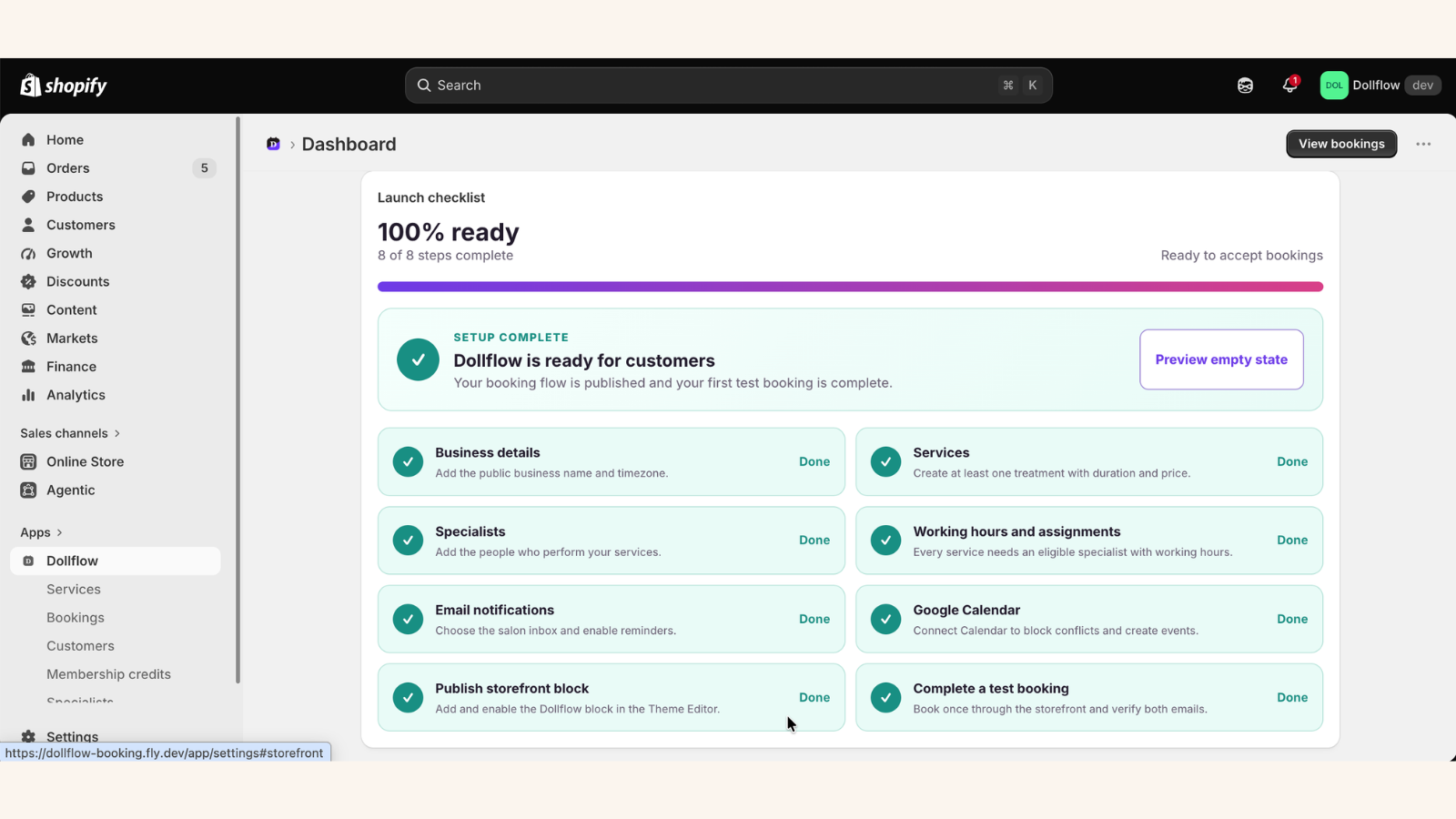
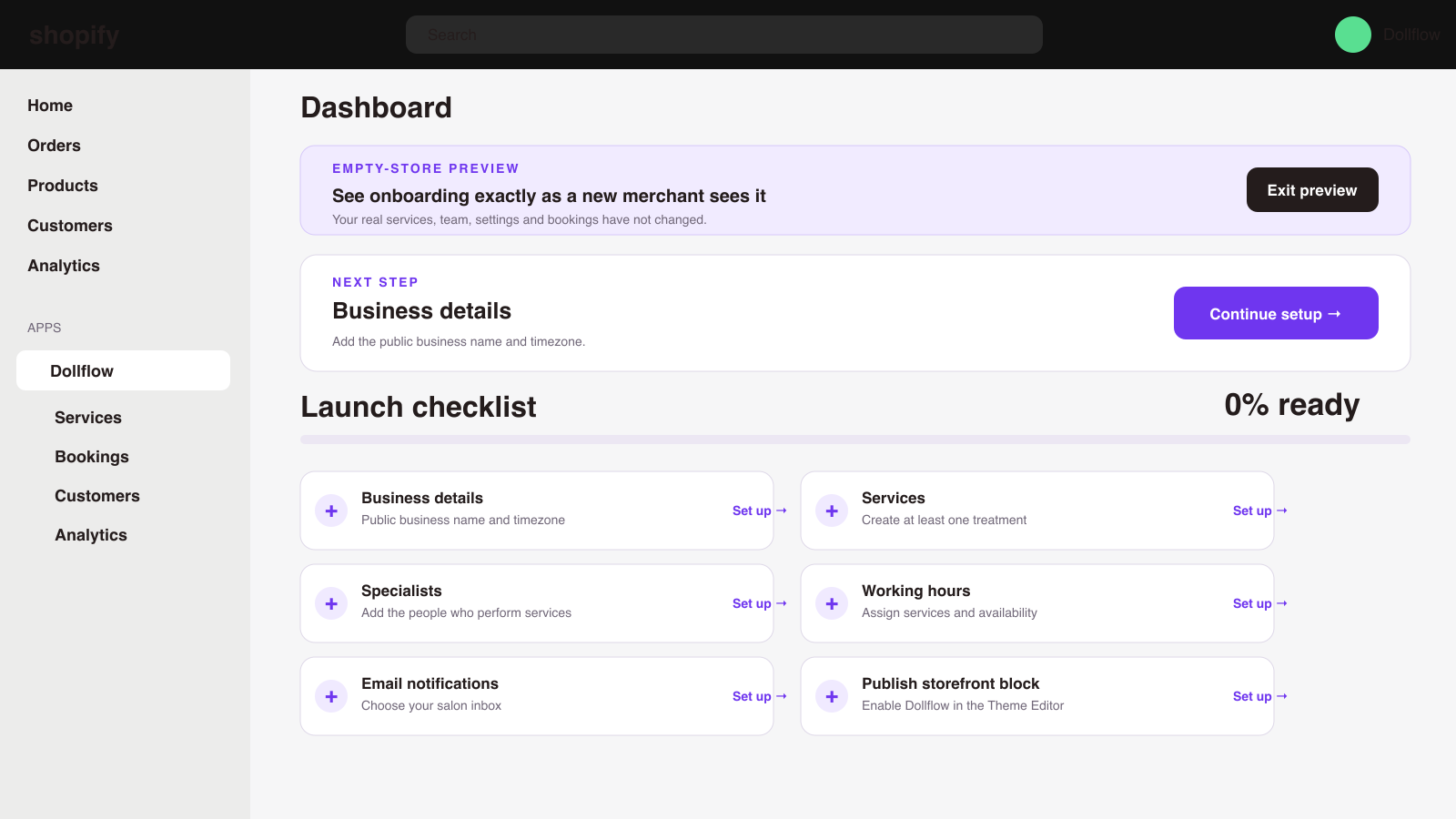
Follow the launch checklist, add services and specialists, choose working hours, connect notifications and publish the storefront booking block.



The customer booking flow
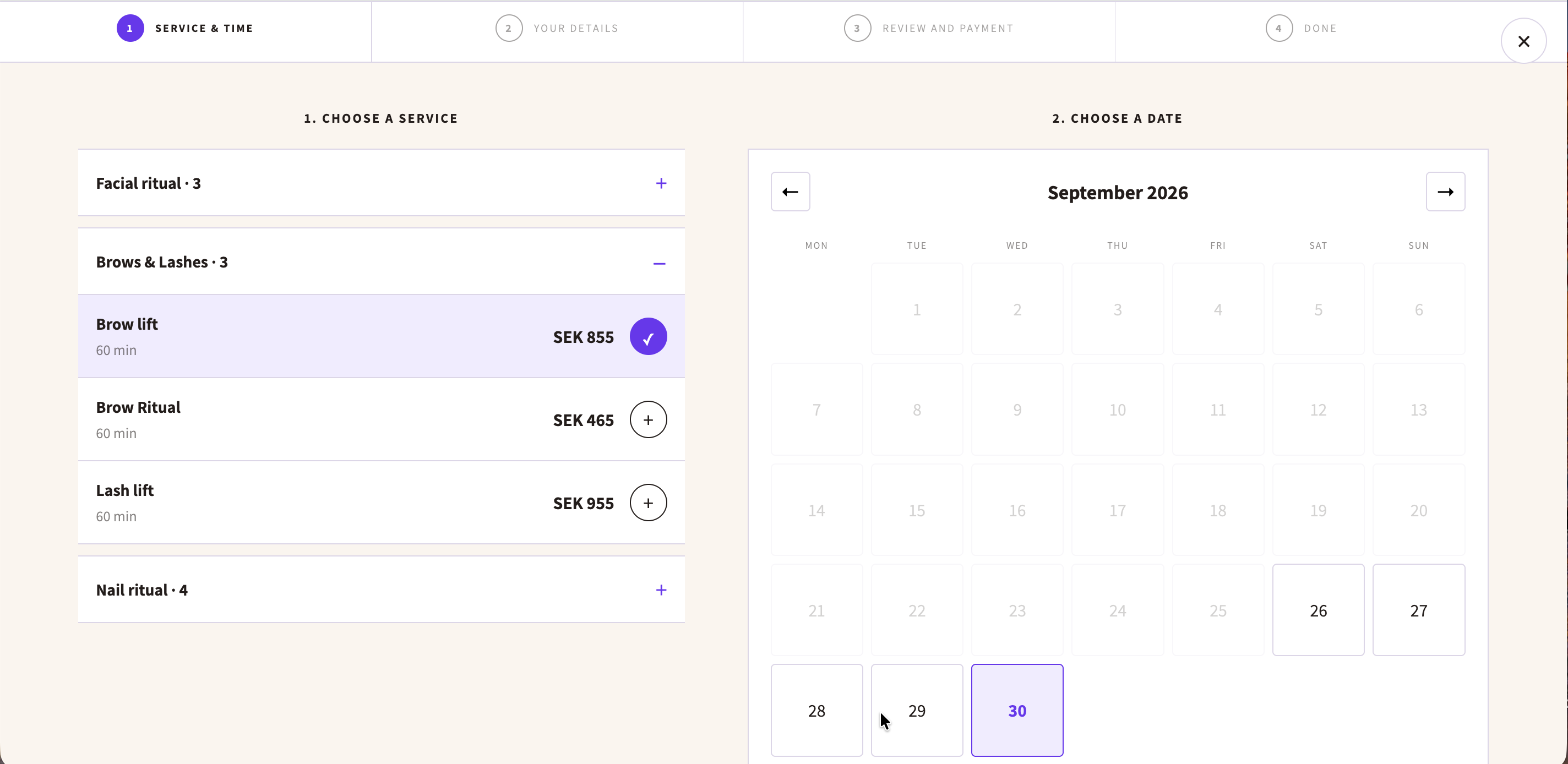
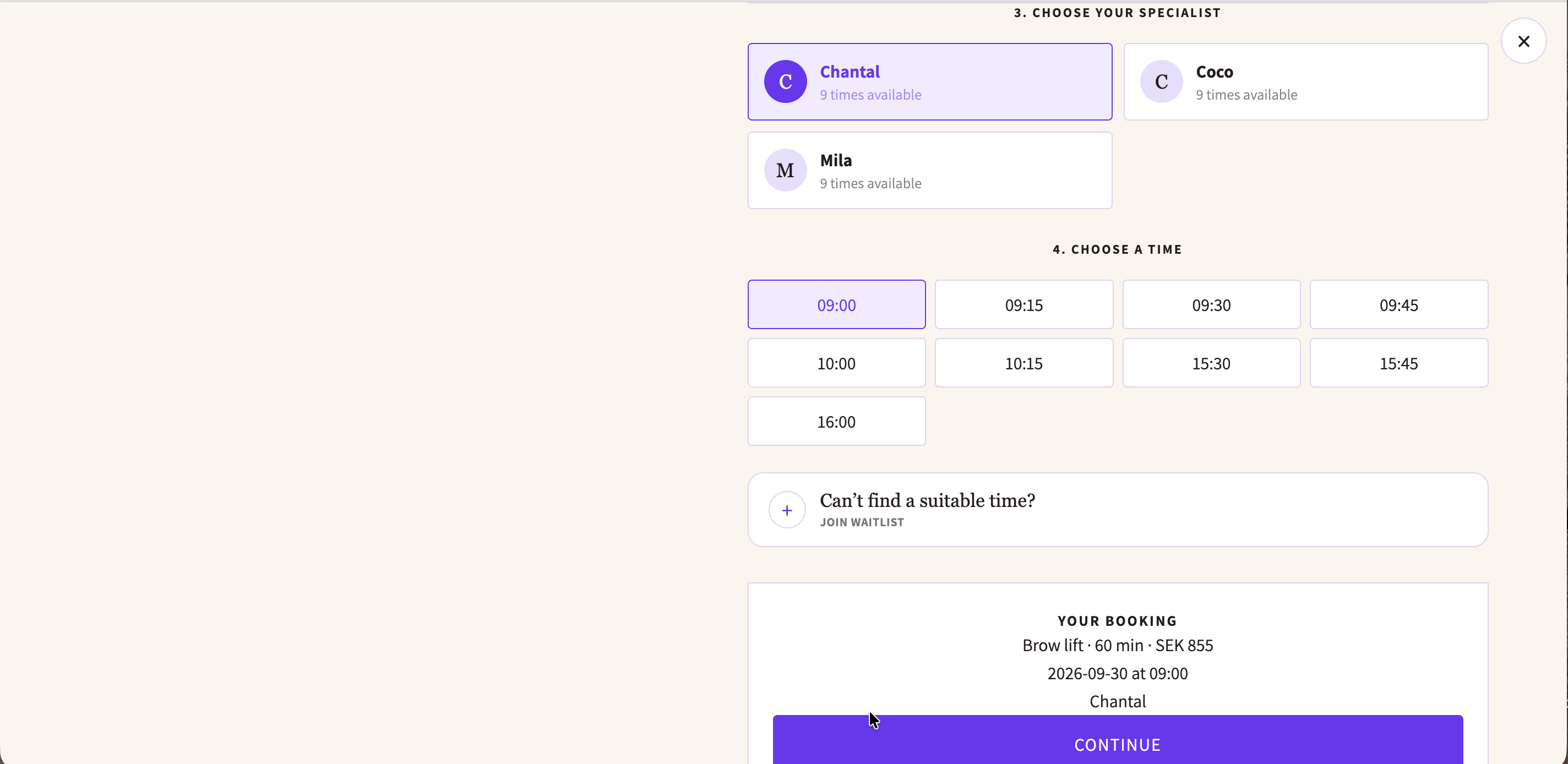
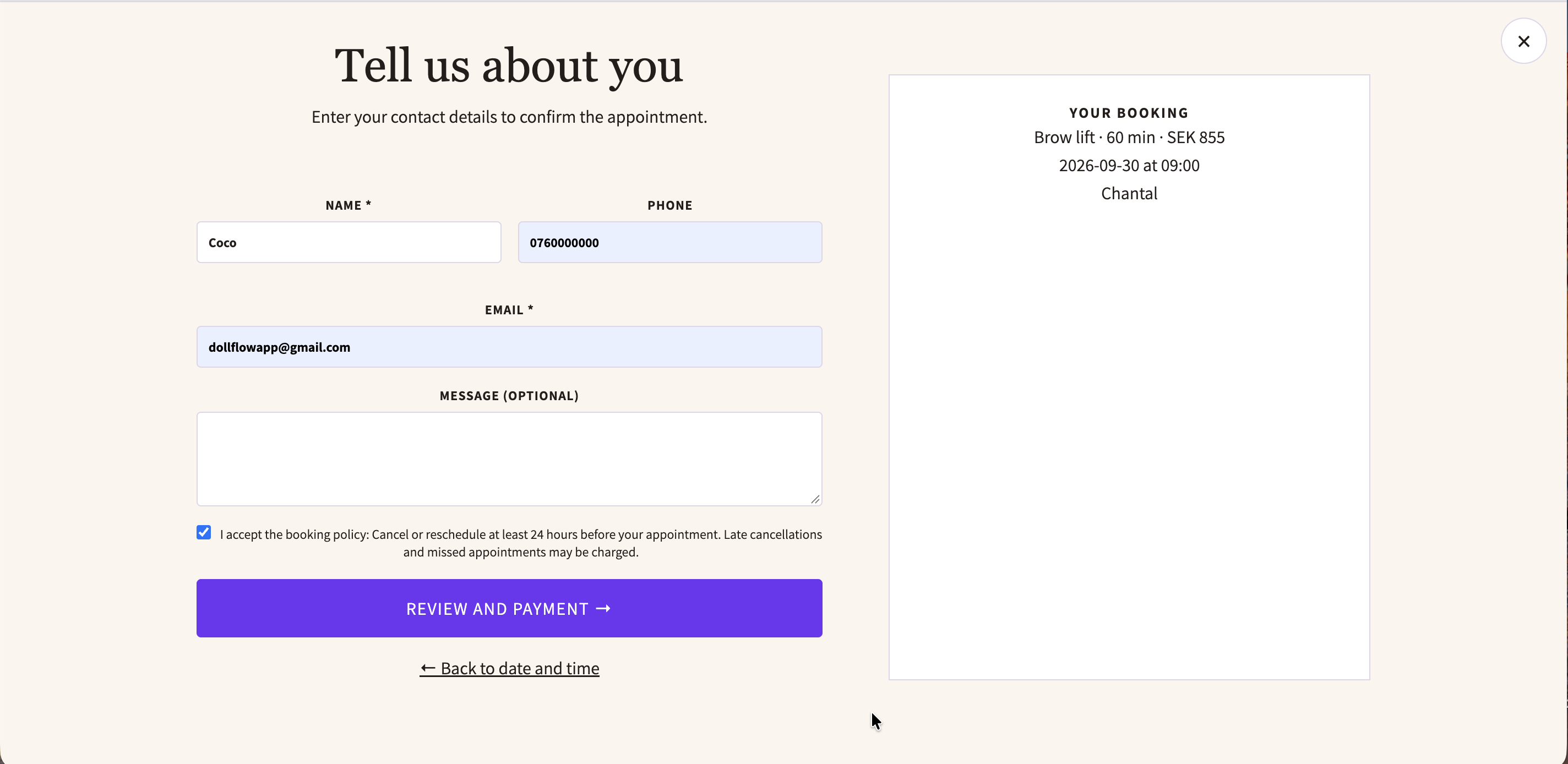
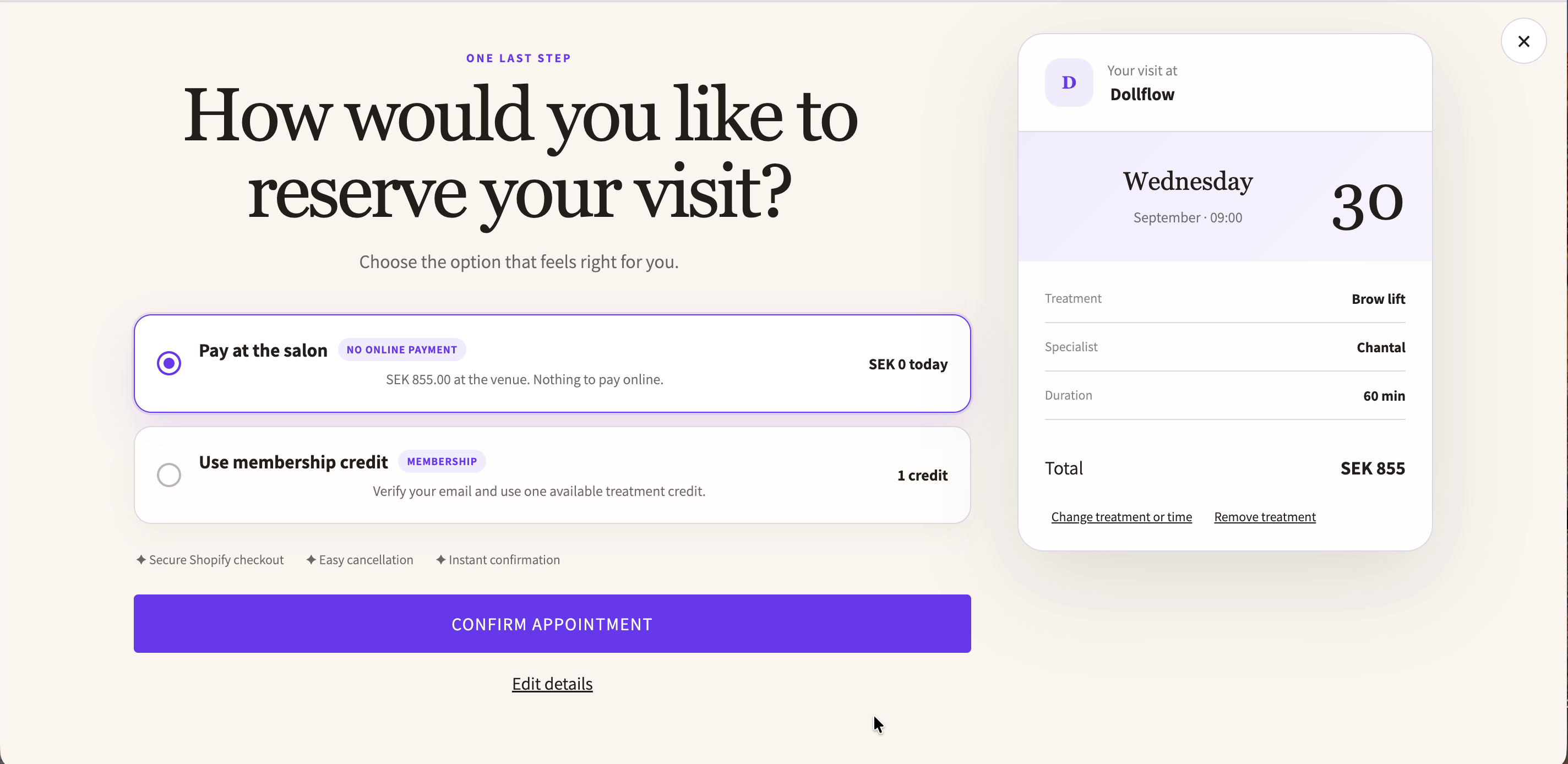
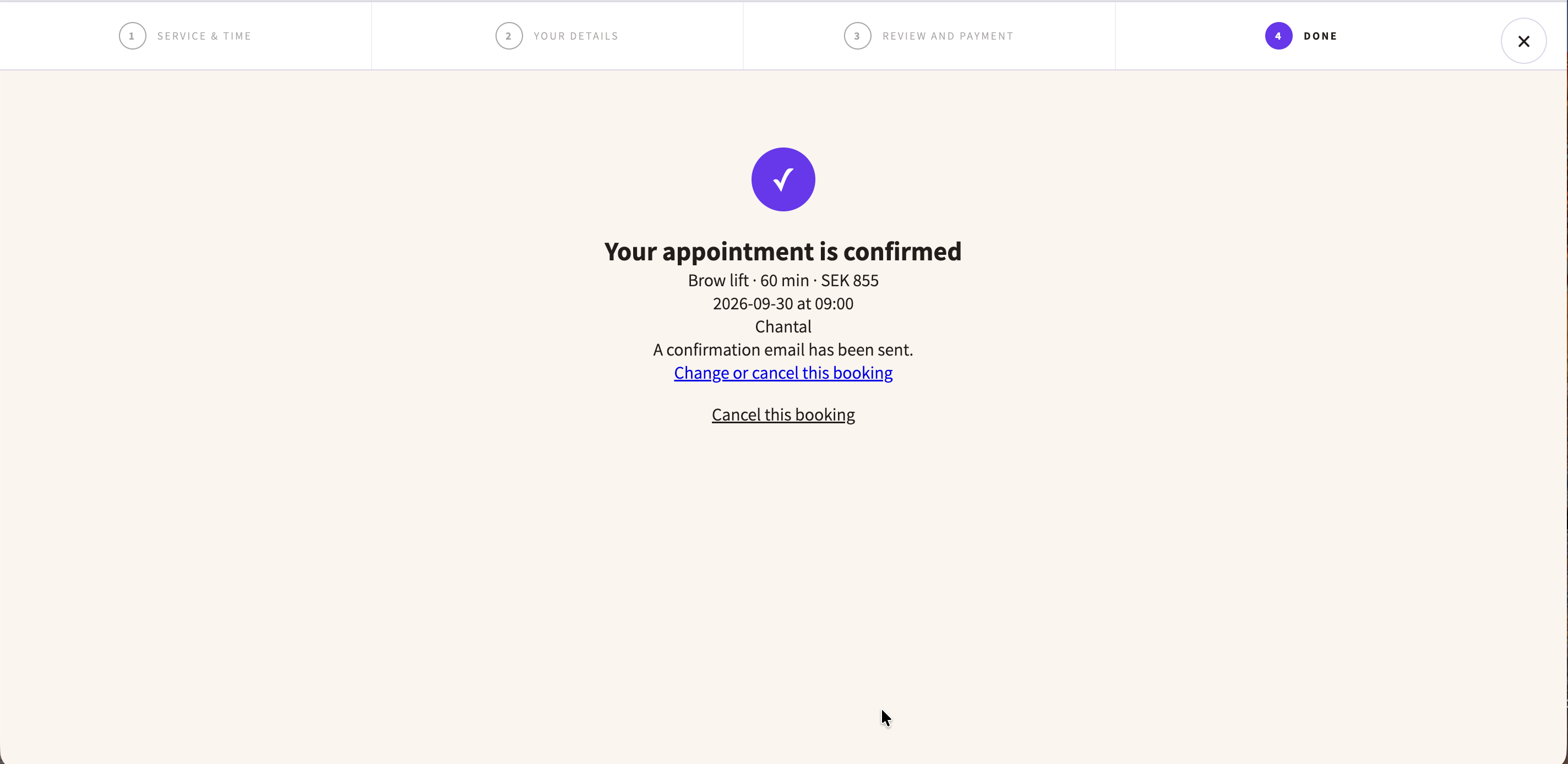
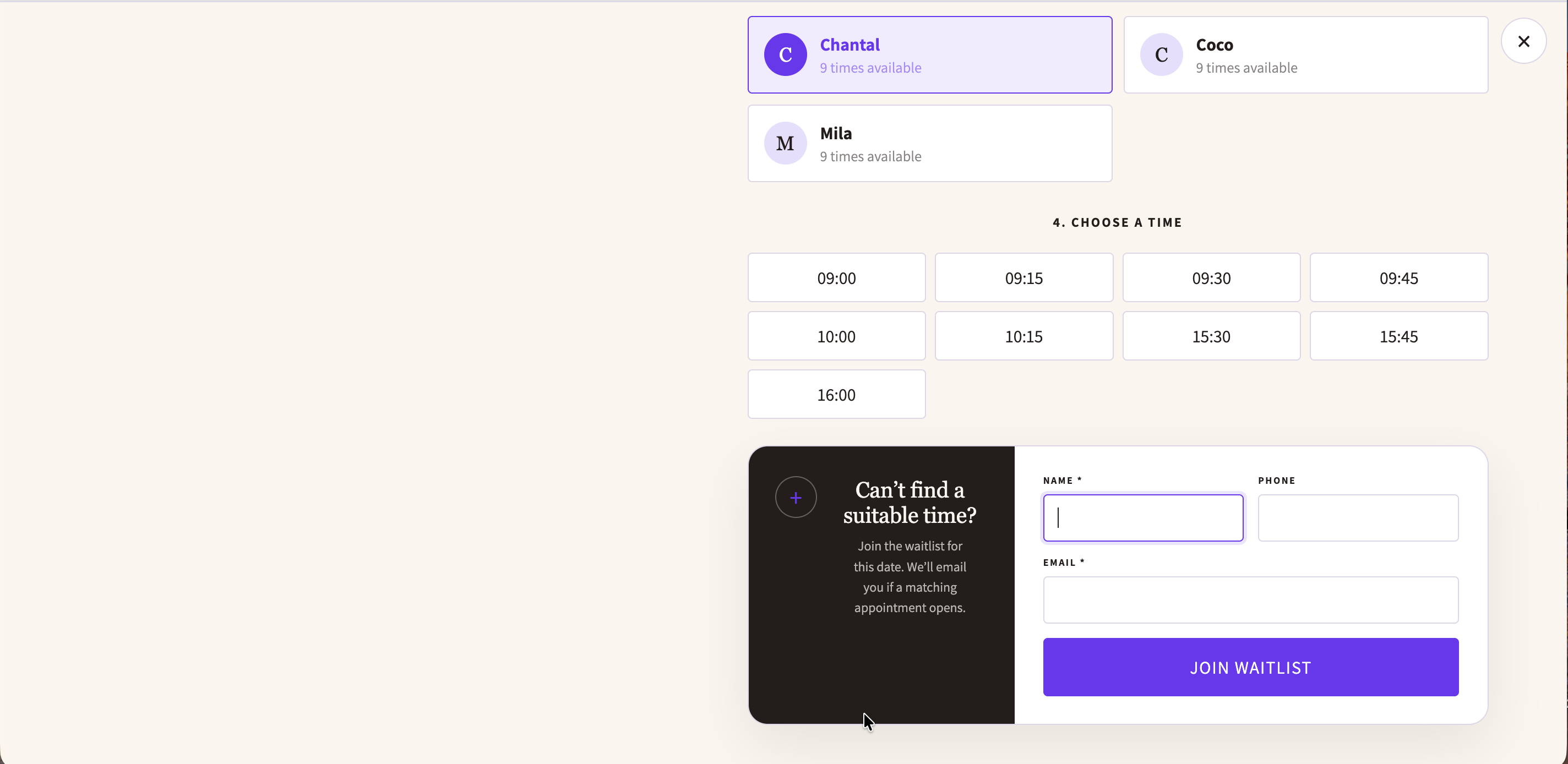
Customers choose a service, date, specialist and genuinely available time. They then enter their details, accept your policy and choose an available payment method.
Manage bookings and payments
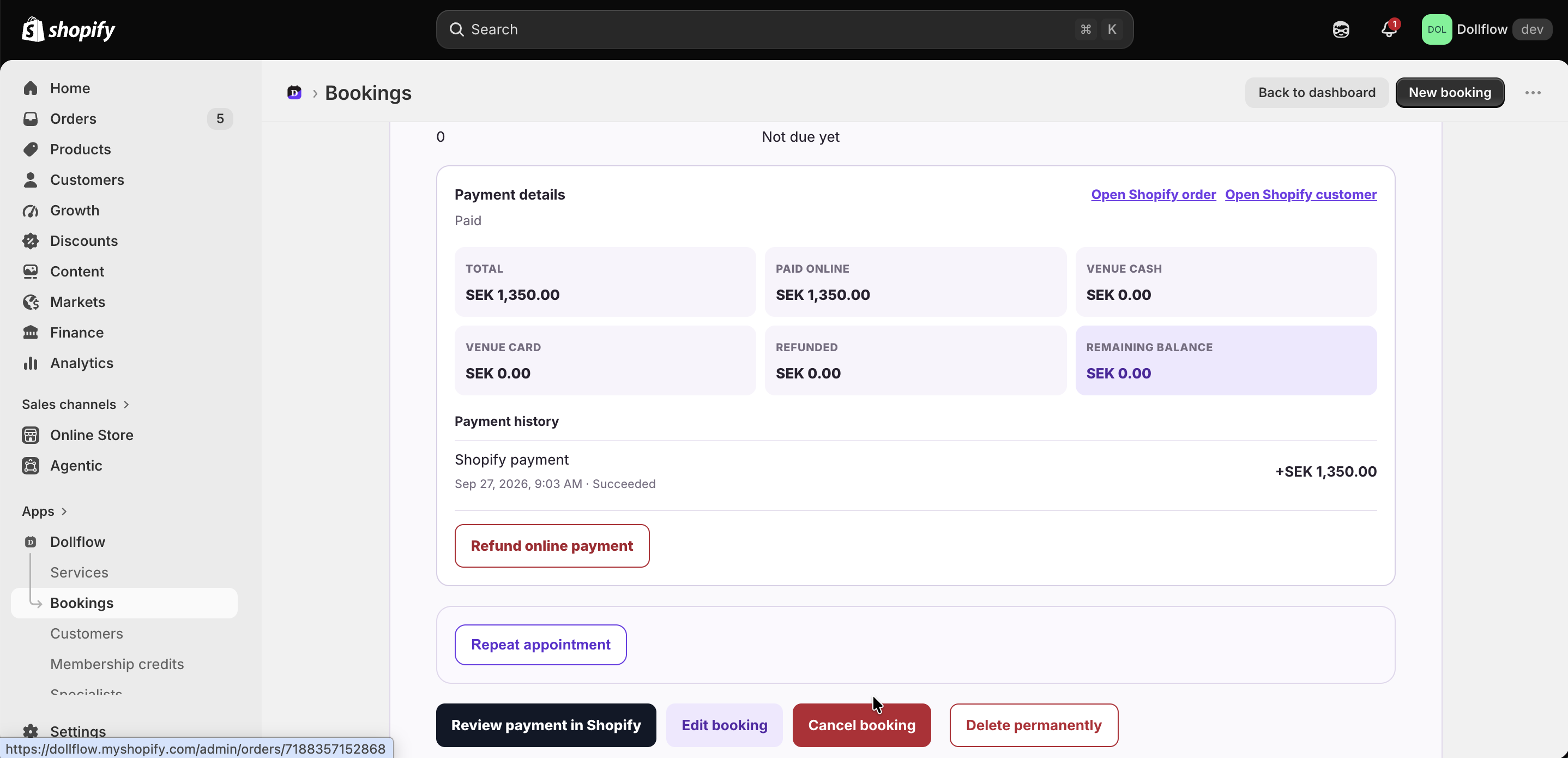
Search and filter appointments, review payment status, record venue payments, refund eligible Shopify payments, cancel bookings and create recurring visits.

Fill cancellations with the waitlist
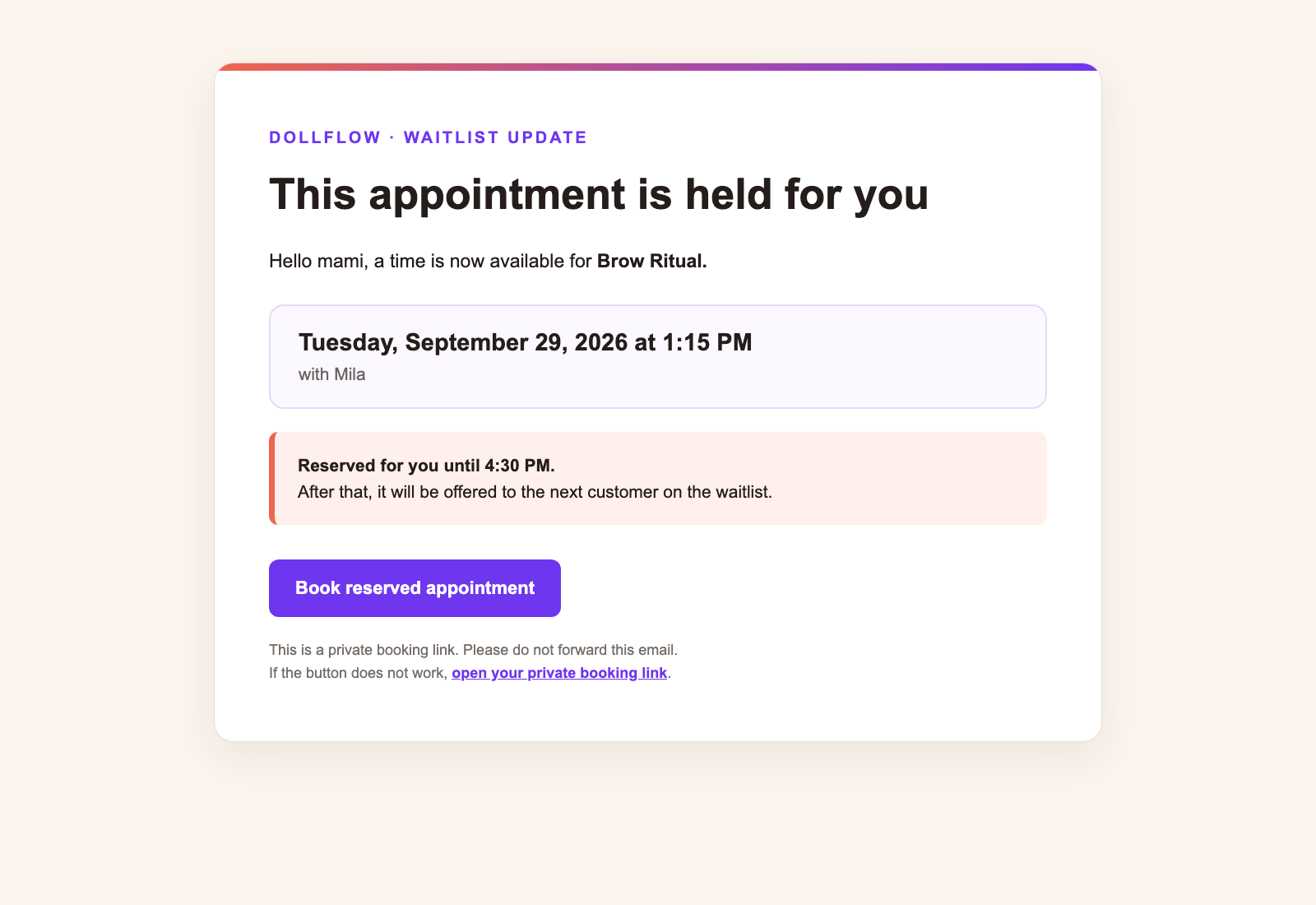
When no suitable time is available, a customer can join the waitlist for a service and date. If a matching booking is cancelled, Dollflow automatically offers the opening to the oldest compatible customer.

Calendar and customer self-service
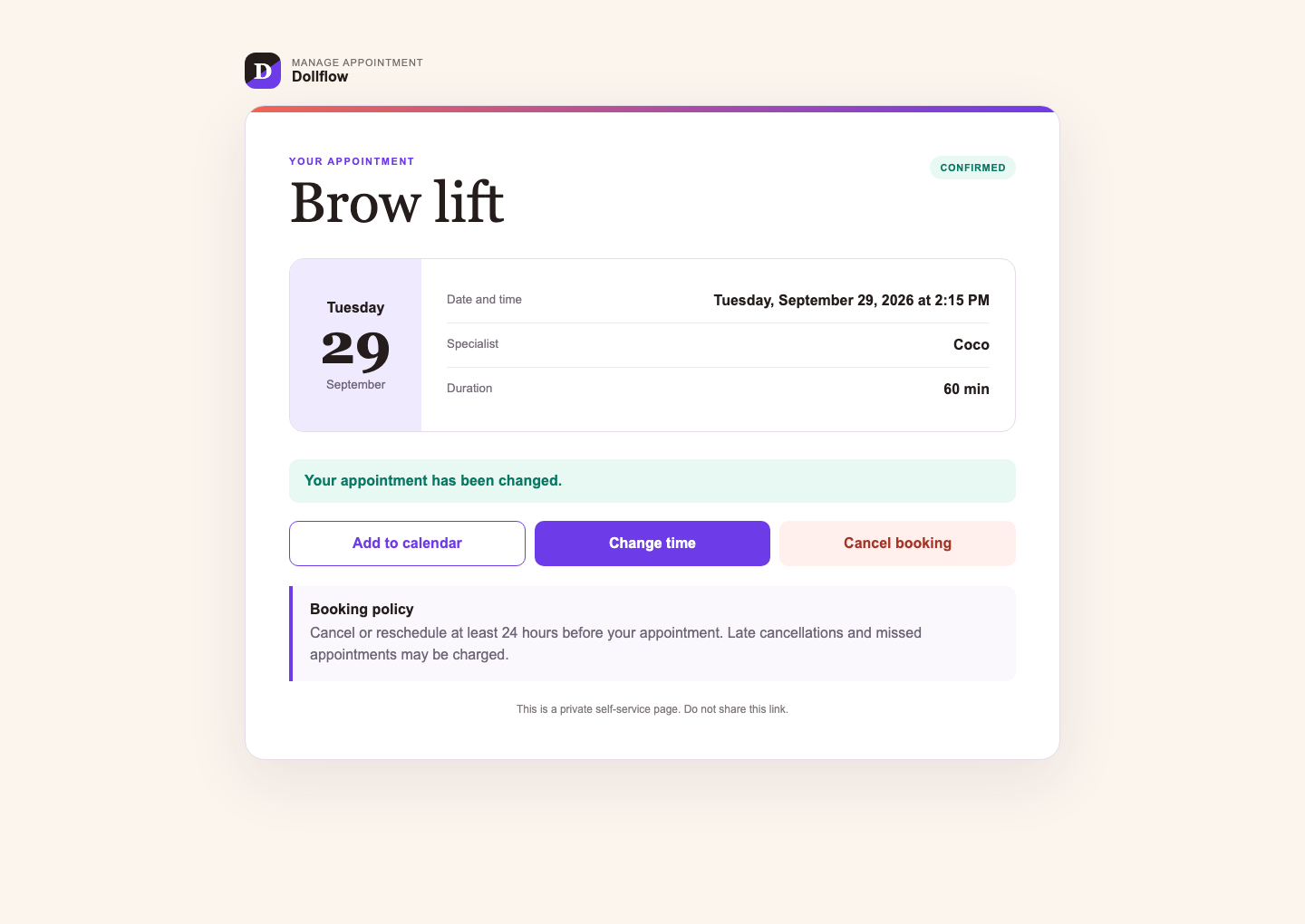
See appointments in Dollflow’s calendar and connect Google Calendar to block conflicts and create events. Confirmation emails include a secure management page where customers can review, reschedule or cancel within your rules.

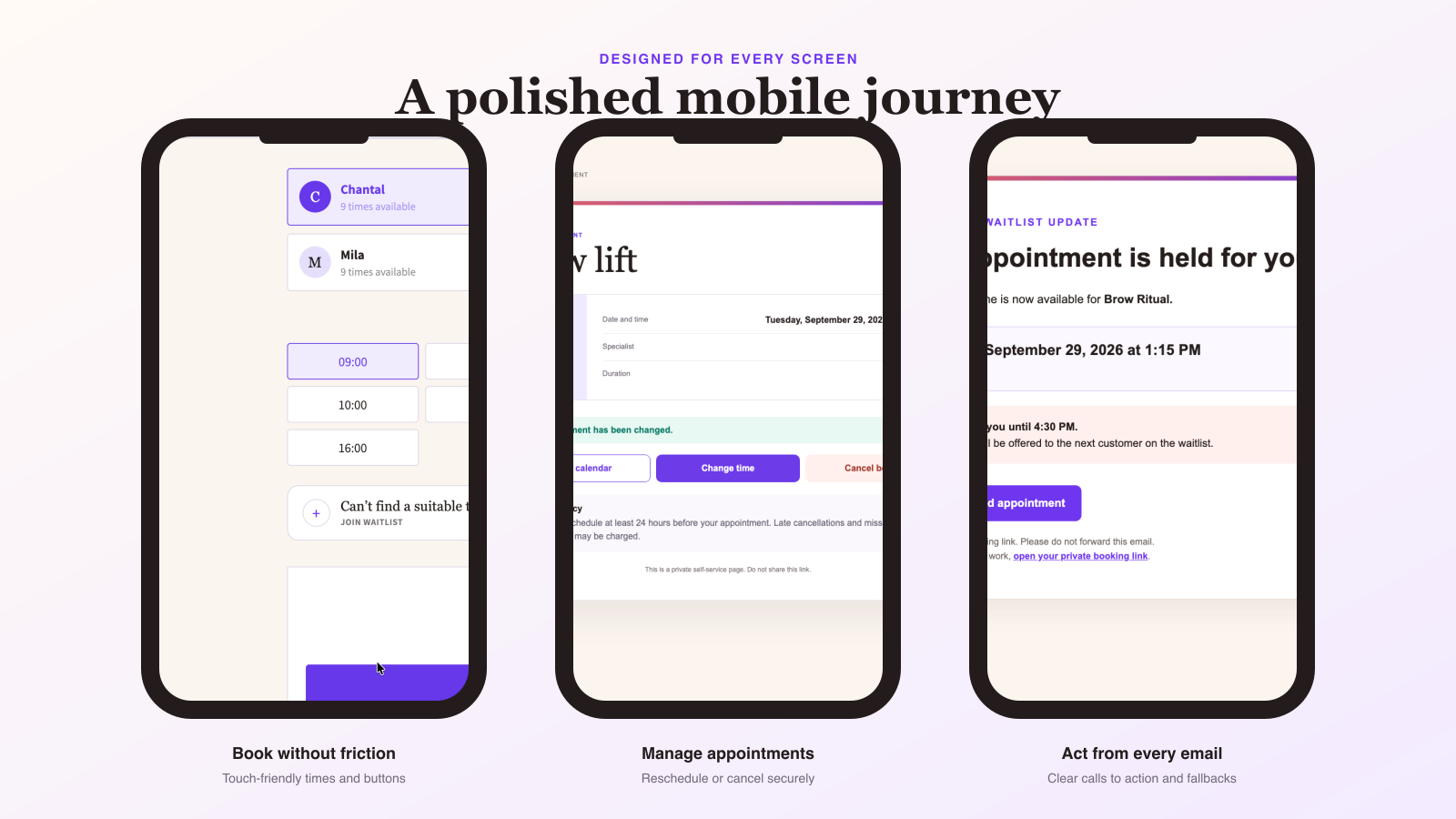
A polished mobile experience
Dollflow’s storefront booking flow, private self-service page and customer emails are designed for smaller screens with readable content, touch-friendly controls and one clear primary action at a time.
Analytics and accountant exports
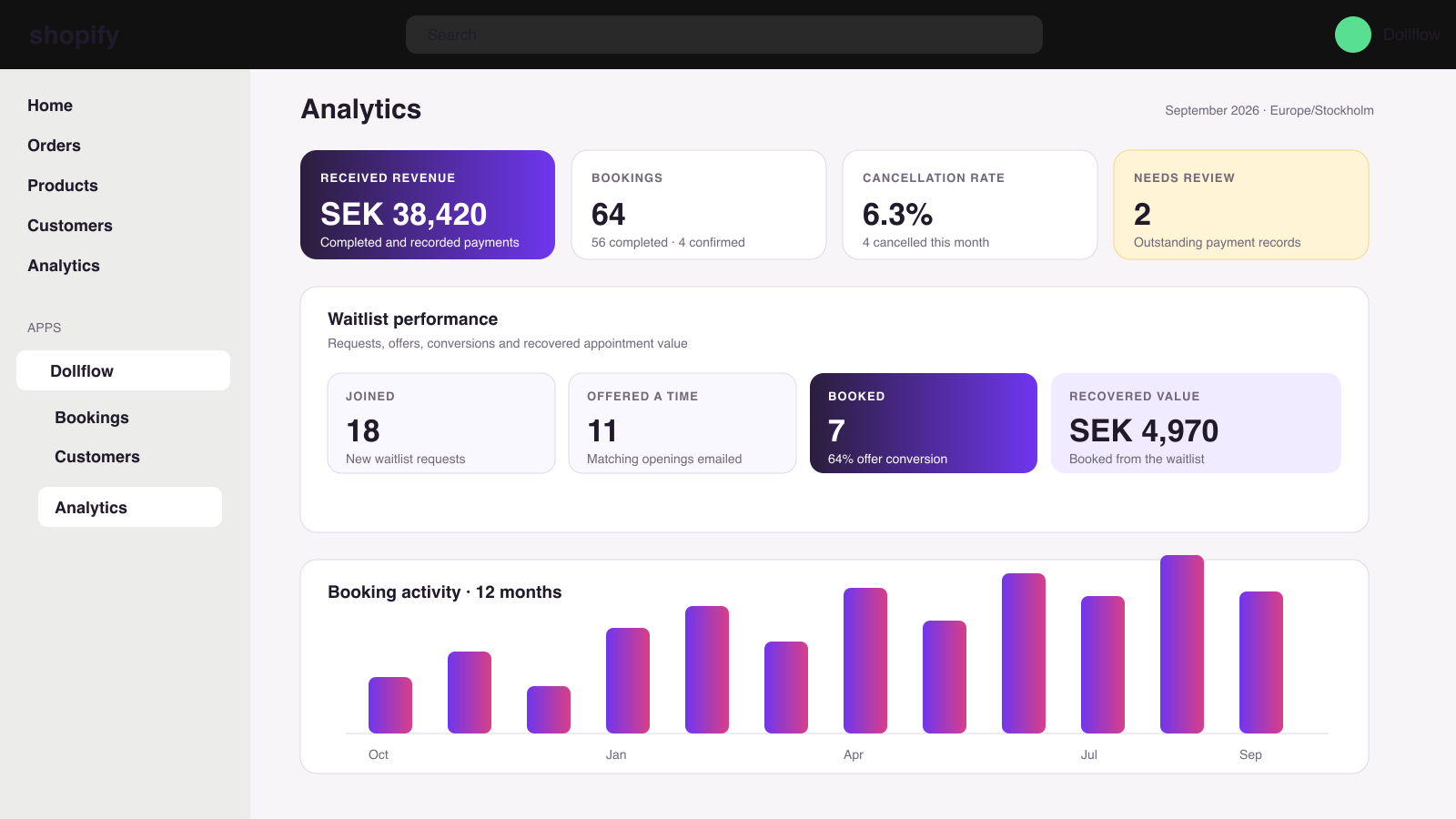
Review bookings, completions, cancellations, monthly revenue, outstanding balances and waitlist performance. Export practical payment reports and archive completed months.

Membership cards and credits
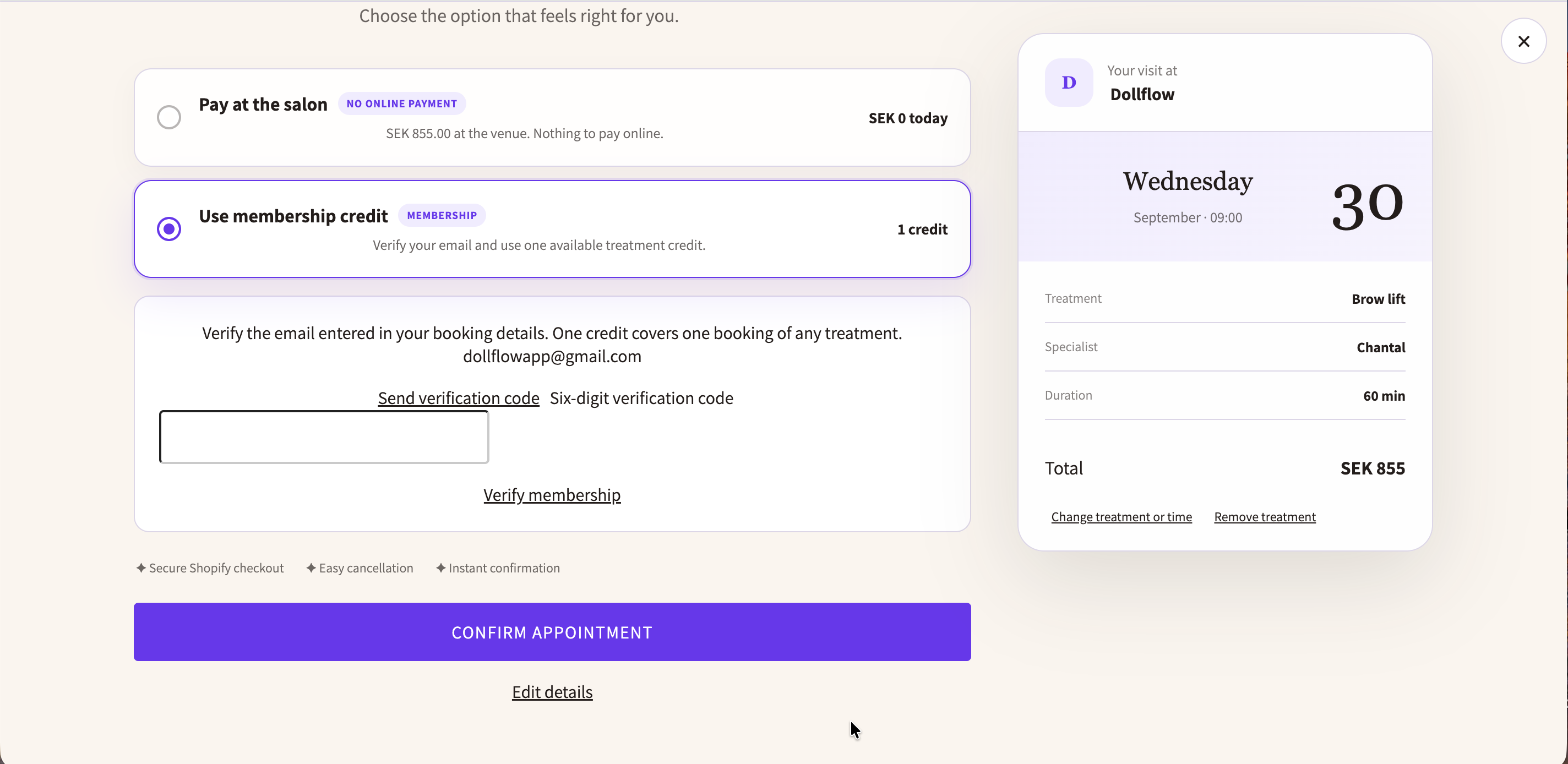
Create or connect a Shopify membership product. After Shopify confirms payment, Dollflow issues the correct credits exactly once and emails the customer automatically.


Languages and plans
Dollflow supports English, Swedish, German, French and Spanish across the admin, storefront booking flow and customer emails.
Start testing Dollflow with the essential booking workflow.
For a growing business that needs more booking capacity.
The complete operational toolkit for an established schedule.
Plan limits can differ, but the available language choices are the same on Free, Basic and Starter.
Need help?
Tell us what you were trying to do and include a screenshot if something does not look right.